Getting Started with ColorLayer
Learn how to transform any image into a stunning multi-color 3D print in just a few minutes. A complete beginner's guide to ColorLayer.
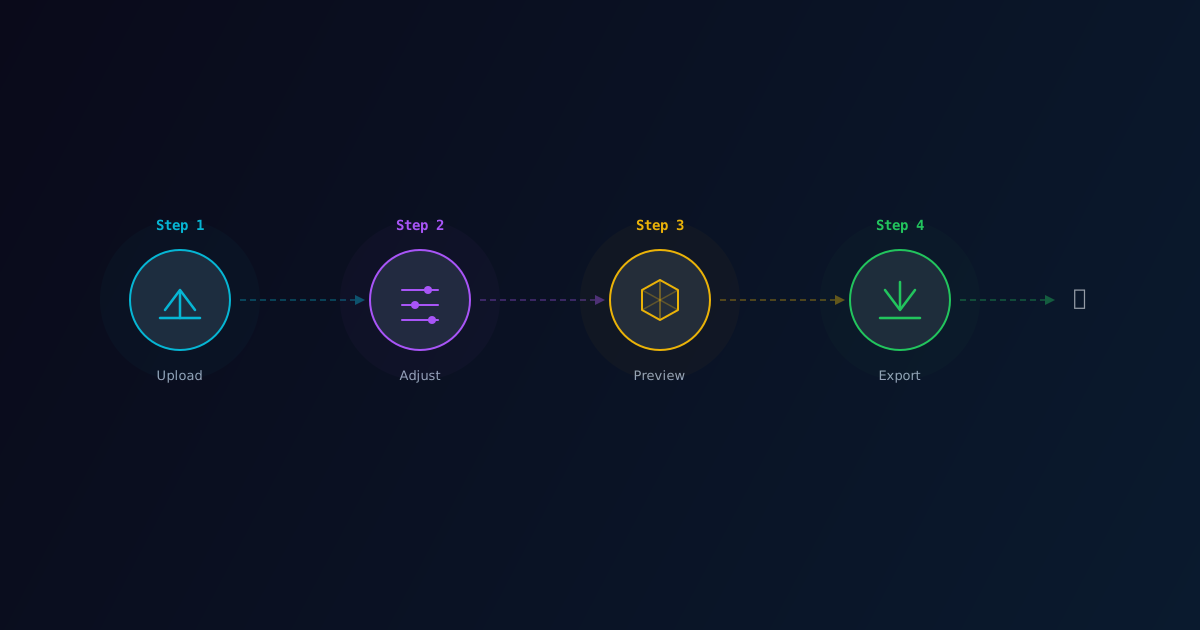
Welcome to ColorLayer! This guide will walk you through the process of turning any image into a beautiful multi-color 3D print. Whether you're new to multi-color printing or an experienced maker, ColorLayer makes the process simple and intuitive.
What is ColorLayer?
ColorLayer is a web-based tool that transforms 2D images into optimized 3D print files for multi-color FDM printers. Unlike traditional approaches that require manual color separation, ColorLayer uses advanced optical simulation to determine the best way to stack translucent filament layers to reproduce your image's colors.
Supported Printers
Currently, ColorLayer supports the Bambu Lab printer lineup:
- A Series: A1, A1 mini
- X Series: X1, X1 Carbon, X1E
- P Series: P1S, P1P
- H Series: H2, H2D
The exported 3MF files are optimized for BambuStudio and include all necessary print settings.
Step 1: Upload Your Image
Head to the Editor and upload your image. ColorLayer accepts most common image formats including PNG, JPG, and WebP. For best results:
- Use images with good contrast
- Simple graphics and logos work particularly well
- Photos can work but may require some experimentation with settings
Step 2: Adjust Settings
Once your image is loaded, you'll see it processed with the default settings. Here are the key settings you can adjust:
Model Size
Set the physical dimensions of your print in millimeters. The aspect ratio is preserved automatically.
Layer Count
More layers generally means better color reproduction, but also longer print times. For most images:
- 2-3 layers: Simple graphics, logos
- 4-5 layers: Detailed images, gradients
- 6+ layers: Complex images requiring smooth color transitions
Base Layer
The base layer provides structural support. You can:
- Enable/disable the base
- Adjust thickness (0.2-1.0mm recommended)
- Set margin around the image
- Choose base shape (rectangle, rounded, or contour)
Step 3: Preview Your Model
Use the 3D preview to see exactly how your print will look. You can:
- Rotate the view by dragging
- Zoom with scroll
- Toggle individual layers on/off
The preview shows the actual colors that will be produced based on optical simulation.
Step 4: Calibration (Optional but Recommended)
For the most accurate colors, create a calibration profile for your specific filaments:
- Go to Settings → Calibration
- Select your filament colors
- Print the calibration card
- Photograph and upload the result
- ColorLayer will learn your printer's exact color output
This step dramatically improves color accuracy, especially for skin tones and gradients.
Step 5: Export and Print
When you're happy with the preview:
- Click Export 3MF
- Select your printer model
- Choose orientation (color-up or color-down)
- Download the file
Open the 3MF in BambuStudio - all settings are pre-configured. Just assign your filaments and print!
Tips for Best Results
- Start simple: Try a logo or simple graphic for your first print
- Use calibration: It takes 10 minutes but makes a huge difference
- Match filament colors: The preview shows expected results based on standard filament colors. Your actual filaments may vary.
- Experiment with layer count: Sometimes fewer layers look better than more
What's Next?
- Explore the Gallery to see what others have created
- Learn about the science behind multi-color printing
- Join our community to share your creations
Happy printing! 🎨
ColorLayer Team
Author