Color Calibration Made Easy: Print What You Actually See
ColorLayer's calibration system uses a printed test card and your phone camera to build a precise color profile for your specific filaments and printer.
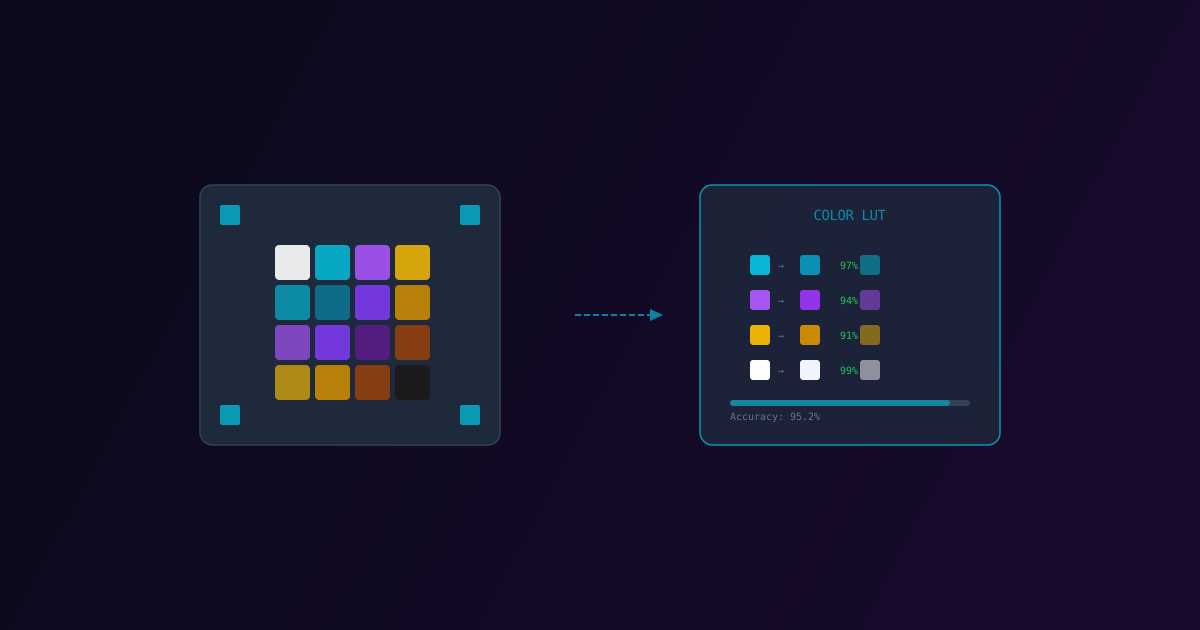
The biggest gap in multi-color 3D printing has always been color accuracy. The color you see on screen rarely matches the color that comes off your printer. Different filament brands, batches, printer temperatures, and even room lighting all affect the final result.
Today we are launching Calibration Profiles in ColorLayer — a system that learns your printer's actual color output and compensates for real-world differences.
The Problem: Theoretical vs. Actual Colors
ColorLayer's optical simulation calculates what colors should theoretically result from stacking specific filament layers. But theory and reality diverge because of:
- Filament variation — two "cyan" filaments from different brands look noticeably different
- Batch variation — even the same brand/color can shift between manufacturing batches
- Temperature effects — hotter nozzle temperatures can slightly alter filament color
- Layer height — thicker layers appear more saturated
- Printer mechanics — extrusion consistency affects layer opacity
Without calibration, you are guessing. With calibration, you know.
How Calibration Works
The process takes about 30 minutes (mostly print time) and the result is permanent for that filament set.
Step 1: Generate a Calibration Card
ColorLayer generates a test card containing all possible color combinations for your selected filaments. With 4 filaments and 3 layers, that is 64 unique color swatches arranged in a grid with corner alignment markers.
The card exports as a 3MF file with all settings pre-configured.
Step 2: Print the Card
Print the calibration card on your Bambu Lab printer using your actual filaments. This step is critical — use the exact filaments you plan to print with, loaded in the same AMS slots.
Step 3: Photograph the Result
Take a photo of the printed card under neutral lighting. ColorLayer uses the corner markers to automatically detect and align the card in your photo.
Step 4: Build the Color Profile
ColorLayer scans each swatch on the photographed card and compares the actual printed color against the theoretical prediction. This creates a Look-Up Table (LUT) that maps predicted colors to measured colors.
Step 5: Apply to Future Prints
Once calibrated, ColorLayer uses the LUT to adjust its predictions. If it knows that your "cyan + yellow" stack produces a slightly bluer green than expected, it compensates by adjusting the layer assignment.
Calibration Results
The difference is dramatic. In our testing:
- Without calibration: Average color error of 15-20 delta-E (noticeably wrong)
- With calibration: Average color error drops to 3-5 delta-E (perceptually accurate)
The improvement is most visible in skin tones, gradient transitions, and subtle color differences — exactly the areas where accuracy matters most.
NPY LUT Import
For advanced users, ColorLayer also supports importing pre-computed LUT files in NPY format. If you have calibration data from other tools or have built your own measurement pipeline, you can import it directly.
Tips for Best Calibration
- Photograph in daylight or neutral white light — avoid warm/cool tinted lighting
- Keep the camera parallel to the card — minimize perspective distortion
- Use the same filaments — calibration is specific to a filament set
- Re-calibrate when changing filaments — a new filament spool needs a new profile
- Store calibration data — ColorLayer saves profiles to your account for reuse
Try It
Open the ColorLayer editor, go to Settings, and start the calibration workflow. It is the single most impactful step you can take to improve print quality.
Calibration profiles are saved to your account and sync across devices. Create one profile per filament set and switch between them as needed.
ColorLayer Team
Author