Colorways: Explore Multiple Color Palettes for the Same Model
ColorLayer's new Colorways feature lets you save multiple filament color variations for a single model. Compare options, share variants, and pick the perfect palette.
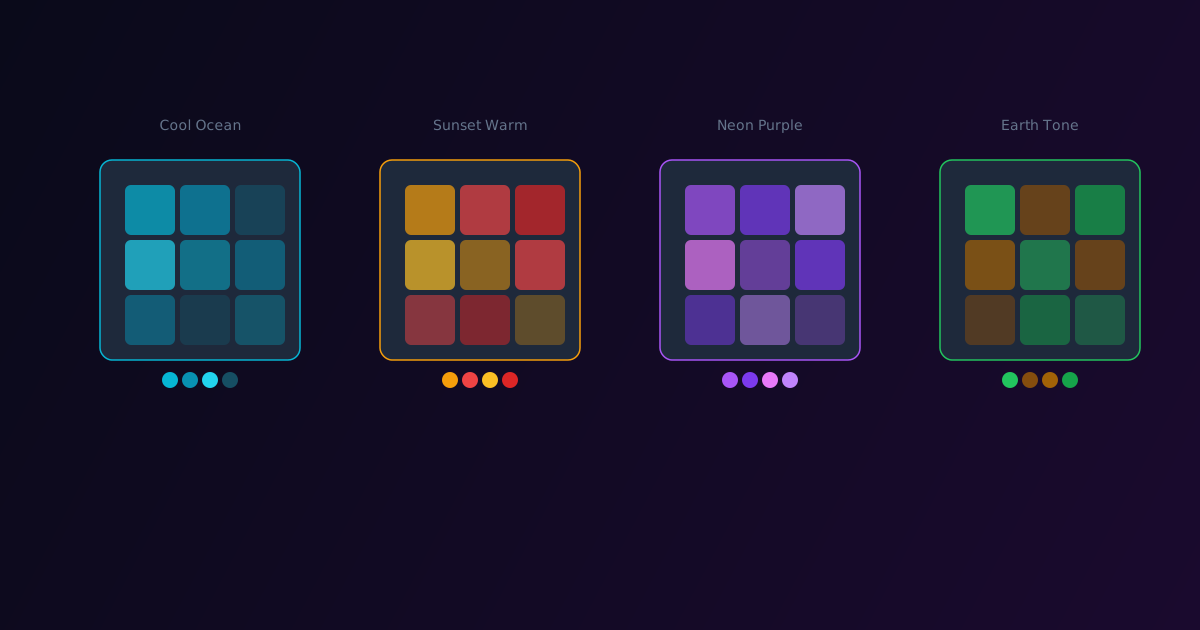
One of the most common requests from ColorLayer users has been the ability to try different color palettes on the same image. "What if I used warm tones instead of cool?" "How would this look with Bambu Lab's new silk filaments?" "Can I show my client three options?"
Today we are shipping Colorways — a feature that lets you save and compare multiple filament color variations for any model.
What Are Colorways?
A colorway is a specific combination of filament colors applied to a model. The same image with the same settings can produce dramatically different results depending on which filaments you choose. Colorways let you:
- Save multiple variations under a single project
- Compare them side by side using the 3D preview
- Switch between them with one click
- Share specific variants with unique URLs
- Export any variant as a 3MF file
How to Use Colorways
- Open any project in the ColorLayer editor
- Configure your first set of filament colors
- Save as a colorway (it becomes your first variant)
- Change the filament colors to a different set
- Save as another colorway
- Switch between variants to compare
Each colorway preserves the full color palette — the preview updates instantly when you switch.
Use Cases
Client Presentations
If you are making custom prints for clients, create three or four colorways representing different aesthetic options. Share the links and let the client pick their favorite.
Material Testing
When trying new filament brands or colors, create a colorway for each set. After printing, you can compare how the theoretical preview matched reality across different materials.
Seasonal Variations
Create holiday-themed or seasonal colorways for the same design. A company logo could have a standard variant, a holiday variant (red and green), and a summer variant (bright and warm).
Batch Operations
Colorways also support batch operations. You can manage, rename, delete, or export multiple colorways from the model management interface.
Colorway Visibility
Colorways inherit the visibility of their parent model:
- Private models — all colorways are private
- Published models — all colorways are visible in the gallery
When someone views your published model, they can browse all its colorways and see how different filament choices affect the result.
URL-Based Switching
Each colorway has a unique URL parameter. You can link directly to a specific variant:
maker.oloo.ai/explore/model-id?variant=ocean-blue
This makes it easy to share a specific color option in messages, emails, or social media posts.
Try It
Open the ColorLayer editor, load any project, and start experimenting with different filament colors. Save each version as a colorway and compare them side by side.
Colorways work with all other features — calibrated colors, background removal, any base shape. Each colorway can have its own calibration profile if you are printing with different filament sets.
ColorLayer Team
Author