Noise Filtering: How ColorLayer Produces Cleaner 3D Prints
Learn how ColorLayer's noise filtering algorithms remove isolated pixels and smooth color boundaries, producing cleaner geometry and better-looking multi-color prints.
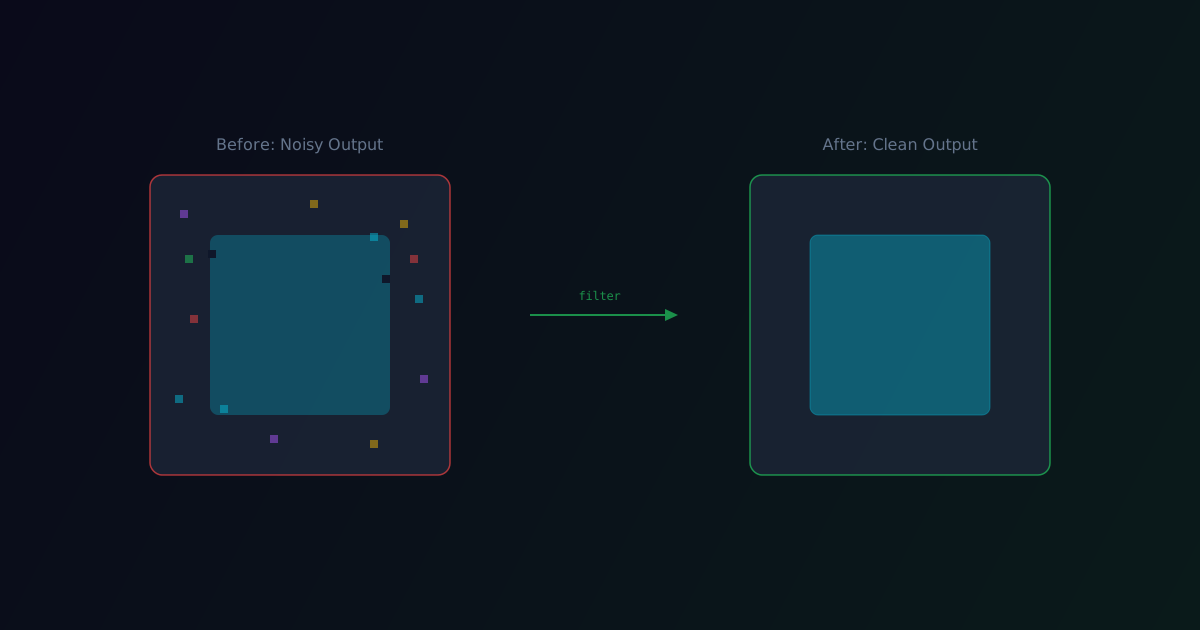
When you convert an image to a multi-color 3D model, every pixel gets mapped to a filament stack. In theory, this sounds clean. In practice, the result often contains "noise" — isolated pixels or small pixel clusters that are technically correct (closest color match) but physically problematic when printed.
A single cyan pixel in the middle of a yellow region means the printer has to do a filament change for one tiny cube, then switch back. This wastes time, produces stringing, and the tiny color speck is invisible at normal viewing distances anyway.
ColorLayer's noise filtering solves this by cleaning up the color map before generating geometry.
Types of Noise
Isolated Pixels
Single pixels surrounded entirely by a different color. These occur when the color mapping algorithm finds a slightly better match for one pixel but the improvement is imperceptible to the human eye.
Small Clusters
Groups of 2-5 pixels that form tiny disconnected islands. Like isolated pixels, these add disproportionate complexity for minimal visual benefit.
Boundary Noise
Jagged, irregular edges between color regions. Instead of smooth boundaries, the transition zigzags pixel by pixel, creating rough edges in the printed model.
How Filtering Works
ColorLayer applies three passes of filtering:
Pass 1: Island Removal
Connected component analysis identifies every contiguous region of same-color pixels. Regions smaller than a configurable threshold (default: 4 pixels) are replaced with the most common neighboring color.
This eliminates isolated pixels and tiny clusters without affecting the overall image appearance.
Pass 2: Boundary Smoothing
Along the edges between color regions, the filter examines each boundary pixel and its neighbors. If a pixel's color disagrees with the majority of its 8-connected neighbors, it gets reassigned to match the dominant surrounding color.
This smooths jagged boundaries into cleaner transitions.
Pass 3: Printability Check
The final pass ensures that every remaining color region is large enough to be physically printable. Extremely thin regions (1 pixel wide, stretching several pixels long) can cause issues with the slicer and are merged with adjacent regions.
The Balance: Filtering vs. Detail
Filtering is a tradeoff. Too little filtering leaves noise that wastes print time and degrades quality. Too much filtering removes genuine detail from the image.
ColorLayer's default settings are tuned to remove clearly problematic noise while preserving meaningful detail. For images with very fine detail (like text at small sizes), you may want to reduce the filtering aggressiveness. For images where clean blocks of color matter more (like logos), stronger filtering produces better results.
Impact on File Size and Print Time
Noise filtering has measurable benefits beyond visual quality:
| Metric | Before Filtering | After Filtering | |---|---|---| | Unique color regions | ~2,500 | ~400 | | Triangle count | ~180,000 | ~28,000 | | 3MF file size | ~4.2 MB | ~0.8 MB | | Estimated filament changes | ~180 | ~35 |
Fewer regions mean fewer triangles, smaller files, and dramatically fewer filament changes during printing. The print looks better and finishes faster.
SVG and 3MF Benefits
Noise filtering benefits both export formats:
- 3MF: Fewer mesh objects, less geometry complexity, faster slicing
- SVG: Fewer vector paths, cleaner outlines, smaller file sizes
The filtering runs before either export format is generated, so both get the same clean input.
Seeing the Difference
The difference is most visible in photographs. A photo converted without filtering will have hundreds of tiny color speckles scattered across the model. After filtering, the same photo produces clean, solid color regions with smooth boundaries.
Try It
Upload a photo to the ColorLayer editor and export it. The noise filtering runs automatically. For advanced users, the filtering parameters can be adjusted in the settings panel.
Noise filtering is one of those behind-the-scenes features that you don't notice when it works — but you would definitely notice if it wasn't there.
ColorLayer Team
Author