Image Enhancement: Get Better Prints with Smarter Preprocessing
ColorLayer's new image enhancement tools adjust contrast, brightness, and color saturation before processing — giving you more vibrant and detailed 3D prints.
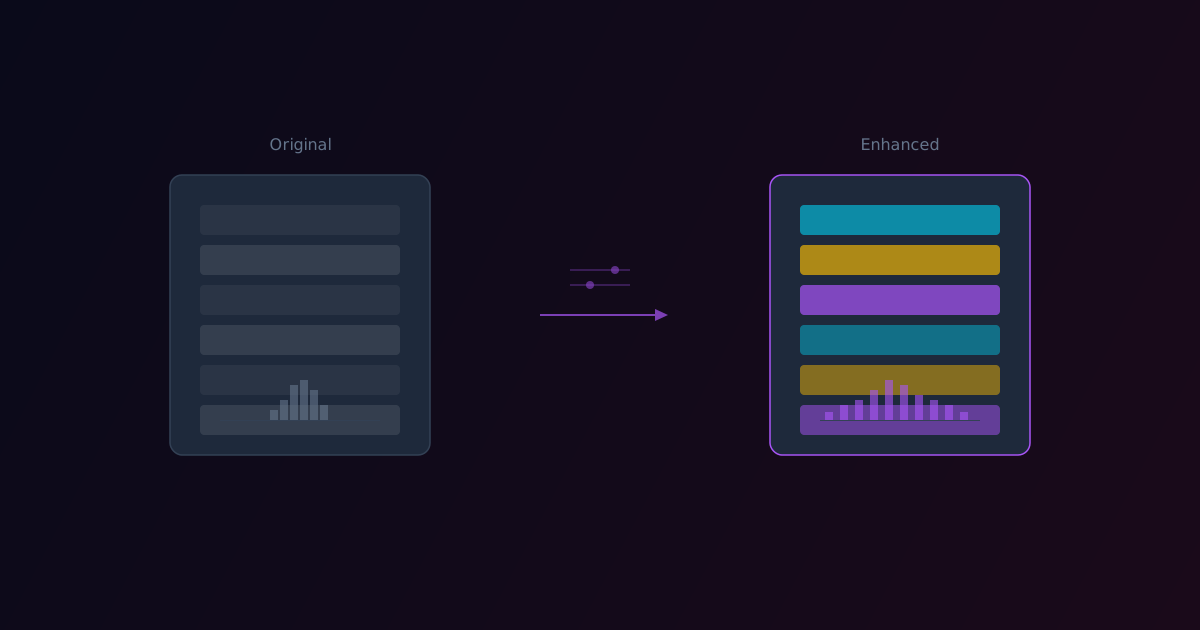
The quality of your multi-color 3D print depends heavily on the input image. A low-contrast photo will produce a flat, washed-out print. An oversaturated image will lose subtle details. Getting the image right before processing makes a measurable difference in the final result.
Today we are adding Image Enhancement tools to the ColorLayer editor, giving you control over the key parameters that affect print quality.
Why Preprocessing Matters
Multi-color FDM printing has a limited color gamut. Even with calibrated filaments, you are working with fewer colors than a screen can display. This means every bit of contrast and color information in your source image needs to count.
Consider what happens with a slightly washed-out photo:
- Without enhancement: The color mapping algorithm sees mostly similar mid-tones and maps many pixels to the same filament stack, losing detail
- With enhancement: Increased contrast separates the tones, and the algorithm maps them to distinct filament stacks, preserving more visual information
Available Adjustments
Contrast
Expands the tonal range of the image. Increasing contrast makes darks darker and lights lighter, which helps the color mapping algorithm distinguish between similar colors.
Recommended: Increase slightly (+10 to +25) for photos, leave at 0 for graphics and logos that already have strong contrast.
Brightness
Shifts the overall lightness of the image. Since multi-color printing relies on a white base for reflectance, slightly brighter images tend to produce more vibrant results.
Recommended: Slight increase (+5 to +15) for dark photos. Avoid going too high — overexposed images lose shadow detail.
Saturation
Controls color intensity. More saturated images use a wider range of the available filament color gamut.
Recommended: Moderate increase (+10 to +20) for photos. Be cautious with already-saturated graphics.
Real-Time Preview
All enhancement adjustments update the 3D preview in real-time. You can see exactly how each slider change affects the final print before committing. This makes it easy to find the sweet spot for each image.
Auto Image Resize
ColorLayer also automatically handles oversized images. When you upload a high-resolution photo (say 4000x3000 from a phone camera), it gets resized to a processing-friendly resolution. The original dimensions are preserved for quality, but the pixel count is reduced to keep processing fast.
For most prints, 500-1000 pixels on the longest side provides sufficient detail. Higher resolutions increase processing time without noticeably improving print quality, because the physical resolution of FDM printing is limited by nozzle diameter and layer height.
Workflow Recommendation
For the best results, we recommend this order:
- Remove background (if needed)
- Adjust enhancement — start with contrast, then brightness, then saturation
- Check the 3D preview — verify the changes improved the result
- Fine-tune layer count — more enhancement sometimes means you can use fewer layers
- Export
Before and After
The difference is most visible with:
- Phone photos — often slightly underexposed and desaturated
- Scanned images — tend to have reduced contrast
- Old photos — may have faded colors that benefit from saturation boost
Try It
Upload an image to the ColorLayer editor and experiment with the enhancement sliders. The real-time preview makes it easy to see the impact of each adjustment.
Image enhancement works with all other ColorLayer features — background removal, calibration, and any base shape. Stack them together for the best possible results.
ColorLayer Team
Author